
reset iphone camera settings guide improves photo quality in
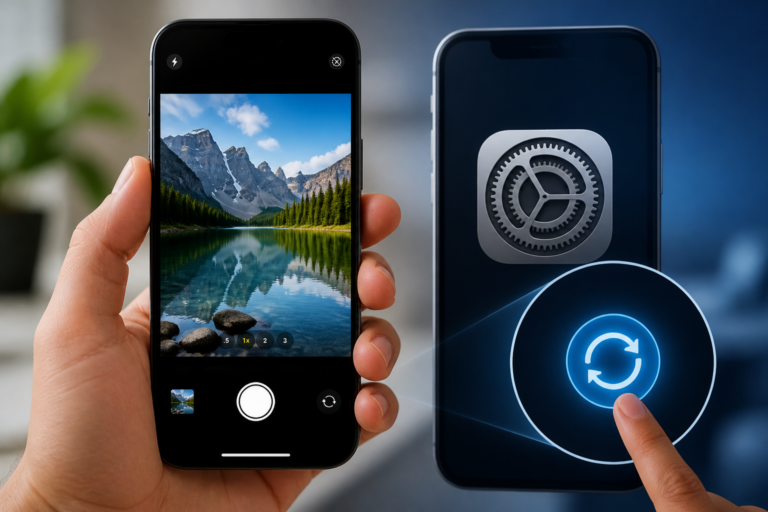
reset iphone camera settings is the focus of this technology-news update.
How To Reset The Camera Settings On Your iPhone
The iPhone has become an essential tool for photography, serving both casual users and professional content creators. However, users sometimes face issues such as degraded image quality, erratic behavior in the Camera app, or settings that no longer match their preferences. Knowing how to reset iPhone camera settings provides a straightforward and effective way to address these problems without resorting to a full device reset. This article examines the reasons for resetting camera settings, outlines the procedure, and considers the implications for users and developers.
Why Resetting iPhone Camera Settings Matters
Many iPhone users rely heavily on the device’s camera, yet subtle changes—whether intentional or accidental—can adversely affect photo and video quality. Filters might remain enabled, presets may be altered, or the app may behave inconsistently following software updates. These issues can be frustrating, particularly when users simply want to restore the camera to its default, optimal state.
Resetting camera settings offers a focused troubleshooting step that does not impact the rest of the device’s configuration. This approach is especially useful for users seeking to avoid the complexity and time required for a full system reset. Given the increasing importance of iPhone photography in both personal and professional contexts, understanding this process is a valuable troubleshooting skill.
Understanding iPhone Camera Settings and Their Impact
The iPhone’s Camera app includes multiple adjustable parameters that influence the final image or video output, such as:
– Photo formats and resolution settings
– Video recording quality and frame rates
– Real-time filters and styles
– Shooting modes including Portrait, Night, and Panorama
– Exposure controls and focus adjustments
– Live Photo activation
– Grid display and other interface preferences
Modifications to these settings can sometimes produce undesired results, such as overexposed images, blurred photos, or inconsistent color tones. Additionally, iOS updates may alter default behaviors or introduce new camera features that affect how these settings interact. Third-party camera apps can also indirectly influence system settings, potentially complicating the user experience.
How To Reset The Camera Settings On Your iPhone: Step-by-Step
Unlike some applications that provide a dedicated reset option, the Camera app’s settings are managed through the broader system preferences. To reset iPhone camera settings, follow these steps:
1. Open the Settings app on your iPhone.
2. Scroll down and tap General.
3. Select Transfer or Reset iPhone.
4. Tap Reset.
5. Choose Reset All Settings. This resets system settings, including camera preferences, without deleting personal data like photos or apps.
6. Confirm your choice by entering your device passcode if prompted.
It is important to note that there is no standalone “Reset Camera Settings” option; camera-related configurations are reset as part of the broader “Reset All Settings” process. This restores default values for various system settings affecting the Camera app, while leaving photos, videos, and other personal data intact.
The “Reset All Settings” option differs significantly from a factory reset, which erases all content and settings from the device. It is less disruptive and often sufficient to correct issues related to camera settings.
What Happens When You Reset Camera Settings: Key Details
Performing a reset of all settings impacts the Camera app in several ways:
– Customized camera preferences revert to default values, including photo formats, video resolution, and filters.
– User-created presets within the Camera app are removed.
– Shooting modes return to default states, and toggled options such as Live Photo or grid display reset.
– Other system settings outside the Camera app, including Wi-Fi networks, Bluetooth pairings, and display preferences, are also reset.
Importantly, none of your photos or videos are deleted. The reset process does not affect stored media or third-party applications. This distinction is crucial for users concerned about data loss.
Impact on Users, Developers, and Businesses
For everyday users, resetting camera settings can restore expected Camera app behavior and improve image quality by removing unwanted configurations. This step is particularly useful when encountering glitches or after iOS updates that introduce unexpected camera behavior.
Developers integrating camera functionality benefit from understanding these resets, as third-party apps may interact with iPhone camera settings. Anticipating situations where system-level resets alter user configurations can help developers manage app performance and user experience more effectively.
Businesses that depend on iPhone photography for marketing, documentation, or product imaging can reduce downtime by training staff to reset camera settings quickly. This simple procedure often resolves common issues without requiring technical support or extensive troubleshooting.
Comparison With Other Troubleshooting Methods
Resetting camera settings via the “Reset All Settings” action is one of several options to address camera-related issues. Other methods include:
– Rebooting the device: A simple restart can clear minor software glitches but does not change configurations.
– Force quitting the Camera app: Closes the app, potentially fixing temporary freezes or responsiveness problems.
– Factory reset: Erases all data and settings; used as a last resort when other steps fail.
– Updating iOS: Installing the latest software updates can patch bugs affecting camera functions.
Resetting all settings is appropriate when configuration issues are suspected and is less severe than a full factory reset. However, if hardware problems persist or software bugs remain after resetting, more comprehensive solutions may be necessary.
Limitations and Unknowns in Resetting Camera Settings
While resetting settings can resolve many common issues, it does not address hardware-related defects such as lens damage, sensor failures, or physical obstructions. Persistent problems following a reset may require professional repair.
Additionally, some bugs related to specific iOS versions or conflicts caused by third-party camera apps may not be resolved by resetting. Since system-level camera configurations are not fully visible to users, certain settings may remain inaccessible or unaffected by the reset.
This lack of transparency can complicate troubleshooting, especially for advanced users or developers seeking granular control over camera behavior.
What Happens Next: Best Practices After Resetting Camera Settings
After performing a reset, users should:
– Review the Camera app and adjust preferences, such as enabling preferred shooting modes or setting resolution options.
– Test the camera by capturing sample photos and videos to verify issues are resolved.
– Monitor for recurring problems that may indicate deeper software or hardware concerns.
– Keep the device updated with the latest iOS releases, as Apple continually refines camera software and fixes bugs.
– Seek professional assistance if issues persist despite resetting and updating.
Future iOS updates may introduce more granular controls or dedicated reset options for the Camera app; currently, resetting all settings remains the primary method to refresh camera configurations.
Key Takeaways
– Resetting iPhone camera settings helps resolve configuration issues without deleting personal media.
– The procedure is performed via “Reset All Settings” in the iPhone settings menu and affects multiple system preferences.
– It is less disruptive than a factory reset and often sufficient to fix camera-related glitches.
– Limitations exist, particularly regarding hardware problems or complex software bugs.
– Users should recalibrate camera preferences post-reset and maintain device updates.
Conclusion
Understanding how to reset iPhone camera settings is a valuable skill for anyone relying on their device’s camera. This targeted troubleshooting approach addresses common photo and video issues without risking data loss or requiring extensive technical intervention. While not a universal solution, it balances ease with effectiveness.
Users, developers, and businesses should incorporate this step into their troubleshooting processes and remain alert to future iOS updates that may enhance camera settings management. For persistent or hardware-related problems, professional diagnostics remain essential.
Frequently Asked Questions
How do I reset the camera settings on my iPhone?
You cannot reset only the Camera app settings directly, but you can reset all settings by going to Settings > General > Transfer or Reset iPhone > Reset > Reset All Settings. This will restore default settings without deleting your data.
Will resetting all settings affect my personal data or photos?
No, resetting all settings does not delete your personal data, photos, or apps; it only resets system settings like network, privacy, and preferences, including camera settings.
Is resetting camera settings available on all iPhone models and iOS versions?
Resetting all settings is available on all iPhone models running iOS 12 and later. There is no dedicated camera settings reset option on any iOS version.
Why might I want to reset my iPhone’s camera settings?
Resetting settings can fix issues like camera app crashes, incorrect exposure, or preference problems caused by misconfigured settings without affecting your photos or apps.
Are there any privacy or security concerns when resetting all settings on an iPhone?
Resetting all settings restores defaults for system preferences but does not erase personal data or passwords saved in iCloud Keychain, so privacy remains intact.
Source: Original reporting

Leave a Reply