
USB C port icons meaning explained: What each symbol indicat
USB C port icons meaning is the focus of this technology-news update.
7 Tiny Icons Next to Your USB-C Port, and What They Actually Mean
The USB-C connector has become a standard feature on modern laptops, smartphones, tablets, and peripherals, offering a universal solution for data transfer, charging, and video output. However, not all USB-C ports provide the same functionality. The small, often cryptic icons printed next to these ports convey important information about their capabilities. Understanding the USB C port icons meaning is increasingly essential for consumers, IT professionals, and developers to ensure compatibility and optimize device performance. This article decodes the seven tiny icons commonly found next to USB-C ports and explains what they signify.
The Origin and Evolution of USB-C Port Icons
USB-C was introduced as a standardized connector to replace multiple port types with a single, reversible design. Its versatility—supporting everything from basic USB 2.0 data transfer to high-speed Thunderbolt, video output, and power delivery—has complicated user experience. To help users identify the specific functions of a USB-C port, industry organizations such as the USB Implementers Forum (USB-IF), the Video Electronics Standards Association (VESA), and the Thunderbolt consortium developed iconography standards. These symbols have evolved alongside the USB-C specification, reflecting the increasing complexity of what a single port can deliver.
7 Tiny Icons Next to Your USB-C Port, and What They Actually Mean
Below is a detailed overview of the seven most common icons found next to USB-C ports, describing their appearance and the functionalities they represent.
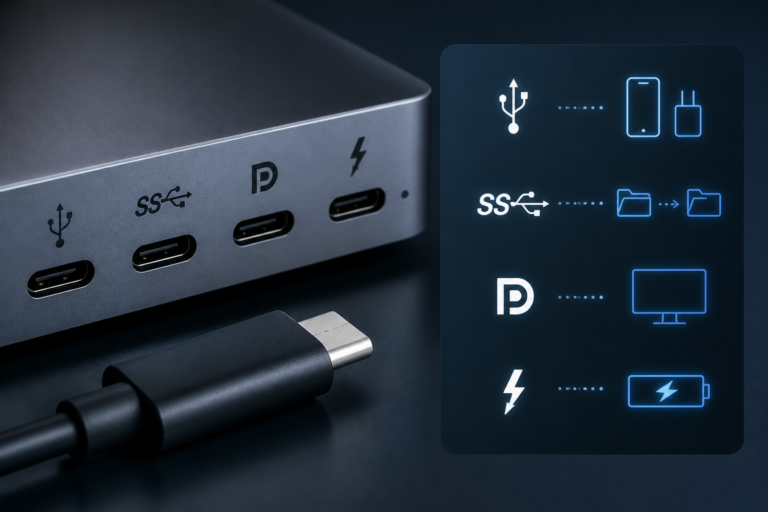
– USB Trident Icon (Standard USB Data Transfer)
The classic USB trident symbol—three prongs shaped like an arrow, a circle, and a square—indicates basic USB data connectivity. When this icon appears next to a USB-C port, it signifies support for USB data transfer, usually at USB 2.0 speeds unless combined with other symbols.
– SS or SuperSpeed (USB 3.x Data Rates)
The letters “SS” stand for SuperSpeed and denote USB 3.x data transfer capabilities. Occasionally, a number such as “10” or “20” follows, indicating 10Gbps or 20Gbps transfer speeds respectively. This icon signals faster data throughput compared to the standard USB trident.
– Lightning Bolt (Power Delivery / Charging Capability)
A lightning bolt icon near the port indicates support for USB Power Delivery (PD), meaning the port can deliver or receive higher wattage for charging. This icon commonly appears on laptops or phones to denote fast charging or the ability to power external devices.
– DP or DisplayPort Logo (Video Output Supported)
The letters “DP” or the DisplayPort logo signify that the USB-C port supports video output via the DisplayPort protocol. This feature is typical on laptops and docking stations, allowing connection to monitors and other external displays.
– Thunderbolt Symbol (Thunderbolt Data and Video Protocol)
The Thunderbolt icon, resembling a lightning bolt with an arrowhead, identifies ports compatible with Thunderbolt 3 or 4 standards. These ports support very high data speeds (up to 40Gbps), video output, and power delivery, offering the most versatile USB-C experience.
– Battery Icon or Charging Symbol (Power Source or Sink)
A battery or charging icon next to a USB-C port typically indicates that the port functions as a power source or sink, highlighting the device’s charging capabilities. This helps users identify where to connect chargers or external power banks.
– Audio Jack or Headphone Icon (Audio Output Supported via USB-C)
Some USB-C ports display a headphone or audio jack icon, indicating support for audio output through the port. This is useful for devices lacking a dedicated 3.5mm headphone jack, enabling users to connect headphones or microphones via USB-C adapters.
It is common for multiple icons to appear together alongside a single USB-C port, indicating combined functionalities. For example, a port displaying both the Thunderbolt symbol and the lightning bolt icon supports high-speed data transfer, video output, and power delivery. Recognizing these combinations can help users select the appropriate port for their needs.
Impact of USB-C Iconography on Users, Businesses, and Developers
The variety of USB C port icons meaning has practical implications for different groups:
– For end users: Clear iconography helps avoid compatibility issues when connecting devices or chargers, reducing frustration and the risk of equipment damage.
– For businesses: IT departments can more efficiently manage assets and deploy devices by identifying port capabilities without consulting detailed specifications.
– For developers and hardware manufacturers: Accurate and consistent labeling ensures compliance with standards and improves customer satisfaction by setting clear expectations.
However, inconsistent or missing icons can cause confusion, leading to misuse of ports, slower data transfers, or insufficient charging power. This underscores the importance of standardized and informative USB-C port iconography.
Comparing USB-C Port Icon Standards Across Manufacturers and Devices
Despite efforts to standardize USB C port icons meaning, variations remain across manufacturers. Laptop makers may use slightly different versions of the DisplayPort logo or omit the “SS” marking even when USB 3.x speeds are supported. Smartphone manufacturers sometimes forgo icons altogether, relying solely on documentation.
Examples of confusing markings include ports labeled only with a USB trident but supporting Thunderbolt speeds, or ports with lightning bolts that do not provide full USB Power Delivery. Such inconsistencies can mislead users about their device’s actual capabilities.
Industry groups continue to advocate for harmonized icon usage to enhance clarity. Clear, universally recognized symbols would benefit users by reducing guesswork and improving the overall USB-C ecosystem experience.
Limitations and Areas of Confusion with Current USB-C Port Icons
While helpful, current USB-C port icons have limitations:
– Icons often indicate general capabilities but do not specify exact transfer speeds or power ratings.
– There is no universal enforcement of icon standards, resulting in inconsistent application across brands and models.
– Multifunction ports supporting multiple protocols can display ambiguous icon combinations, making it difficult for users to understand the full feature set.
These factors highlight that icons provide useful guidance but should not be the sole reference when assessing port functionality.
What Comes Next: The Future of USB-C Port Markings and User Guidance
Standardization bodies such as USB-IF are actively refining iconography guidelines to achieve clearer and more informative markings. Additionally, emerging technologies may complement physical icons with digital or software-based port identification, automatically informing users about port capabilities via operating systems or applications.
As USB4 and newer Thunderbolt versions integrate multiple protocols and offer higher speeds and power delivery, iconography may further evolve to accommodate these advancements. Until then, users are advised to consult device specifications alongside port icons to fully understand their USB-C ports.
Key Takeaways
– Understanding the 7 tiny icons next to your USB-C port, and what they actually mean, is essential for proper device use.
– Common icons include the USB trident, SS (SuperSpeed), lightning bolt, DisplayPort logo, Thunderbolt symbol, battery icon, and audio jack symbol.
– These icons indicate data transfer speeds, video output support, charging capabilities, and audio functionality.
– Inconsistent icon usage across manufacturers can cause confusion, emphasizing the need for standardization.
– Users should verify port capabilities using multiple sources and not rely solely on icons.
Conclusion: Decoding the Tiny Icons to Maximize USB-C Utility
The small icons adjacent to your USB-C port convey critical information about its functions. By understanding the USB C port icons meaning and recognizing common symbols, users can avoid connectivity issues, optimize device performance, and make informed purchasing decisions. While current iconography offers valuable guidance, its limitations mean it should be considered alongside other sources of information.
As USB-C technology advances and becomes more widespread, clearer, standardized iconography and potentially software-based identification will be essential to help users navigate this complexity. For now, paying attention to the seven tiny icons next to your USB-C port, and what they actually mean, remains a practical step toward unlocking the full potential of this versatile connector.
Frequently Asked Questions
What do the tiny icons next to a USB-C port represent?
The tiny icons indicate the USB-C port’s supported features like power delivery, data transfer speeds, video output, Thunderbolt compatibility, or specific protocols such as DisplayPort or HDMI.
Why is it important to understand these USB-C port icons?
Knowing the icons helps users identify the capabilities of the port, ensuring compatibility with accessories, choosing the right cables, and avoiding damage or reduced performance.
Are these USB-C port icons standardized across all devices?
While there is some industry guidance, icons can vary slightly by manufacturer, so it’s best to consult the device’s manual or official documentation for exact meanings.
Do all USB-C ports with these icons support charging and data transfer?
Not necessarily; some icons indicate ports optimized only for charging or video output, so a port may support charging but not high-speed data transfer or vice versa.
How can I find out what each of the 7 tiny USB-C icons on my device means?
Refer to your device’s user manual or manufacturer website, which typically provides a key or explanation for each port icon and its supported functions.
Source: Original reporting

Leave a Reply