
Windows 11 Start menu suggestions gain AI-powered app recomm
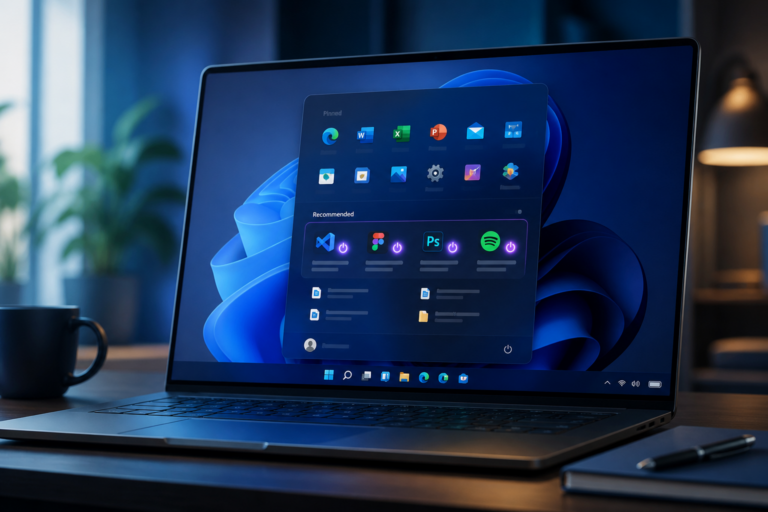
Windows 11 Start menu suggestions is the focus of this technology-news update.
I disabled every suggestion in the Windows 11 Start menu — it’s finally clean
The Windows 11 Start menu serves as a central hub for accessing apps, files, and settings, playing a significant role in the user experience on Microsoft’s latest desktop operating system. However, many users find the default Start menu suggestions distracting or cluttered, as they include recommendations for apps, recently opened files, tips, and occasionally advertisements. For those seeking a minimal and distraction-free interface, the ability to manage or disable Windows 11 Start menu suggestions is essential. This article examines the process and effects of disabling every suggestion in the Windows 11 Start menu — it’s finally clean — to evaluate the benefits and trade-offs of a fully personalized Start menu.
Understanding Windows 11 Start menu suggestions
At its core, the Windows 11 Start menu is designed to provide quick access to key applications and relevant content. By default, it displays pinned apps at the top and a “Recommended” section below, which dynamically populates with suggested apps, recently opened files, and sometimes promotional content from Microsoft. These suggestions aim to facilitate discovery and productivity by highlighting apps or documents the system predicts the user might want to access next.
Suggestions can include:
– Recently used files and documents
– App recommendations based on usage patterns or Microsoft Store promotions
– Tips and tricks for using Windows features
– Advertisements or sponsored app recommendations
While intended to enhance the user experience, many users find these suggestions intrusive or unnecessary. Their presence can clutter the Start menu, making it harder to locate pinned apps quickly or maintain a clean interface. Fortunately, Windows 11 provides settings that allow users to control or disable these suggestions and regain a simpler, more focused Start menu.
How I disabled every suggestion in the Windows 11 Start menu — it’s finally clean
To achieve a Start menu free of suggestions, I followed a systematic approach using built-in Windows settings. The steps, all accessible through the Settings app, require no third-party software or complex modifications:
1. Open Settings: Go to Start > Settings > Personalization > Start.
2. Disable “Show recently added apps”: Turn off this option to prevent newly installed applications from appearing.
3. Disable “Show most used apps”: This stops frequently used apps from appearing automatically.
4. Turn off “Show recently opened items in Start, Jump Lists, and File Explorer”: This prevents recent files and items from populating the Recommended section.
5. Clear the existing Recommended list: Remove any leftover suggested items manually by right-clicking and selecting “Remove from list.”
After completing these adjustments, the Start menu changed noticeably. The “Recommended” section, previously filled with dynamic content, was completely empty, leaving only pinned apps visible. This resulted in a neat, distraction-free interface more reminiscent of traditional Start menus before Microsoft introduced dynamic recommendations and advertisements.
Visual and functional differences before and after
Before disabling suggestions, the Start menu combined pinned apps with a scrolling list of recommended content, including documents, app suggestions, and tips. This often created a visually busy layout that interrupted quick navigation.
After making the changes, the Start menu appeared streamlined with only user-selected pinned apps. Removing suggested items reduced visual clutter and simplified navigation, making it easier to launch apps without sifting through additional content.
Impact on users: Enhanced usability and personalization
Disabling Windows 11 Start menu suggestions offers clear advantages for users seeking a clean and efficient interface:
– Reduced distractions: Users can focus on chosen apps without unsolicited recommendations or ads.
– Improved navigation speed: A decluttered Start menu allows faster access to frequently used applications.
– Greater control: Personalization options empower users to tailor the interface to their preferences.
– Better privacy: Limiting suggestions reduces the amount of user data processed for recommendations.
However, there are potential drawbacks. Users who rely on Start menu suggestions for discovering new apps or resuming recent work may find the experience less helpful. The absence of dynamic recommendations means missing out on potentially useful shortcuts or tips that could enhance productivity.
Impact on businesses and developers: Considerations and consequences
From Microsoft’s perspective, Windows 11 Start menu suggestions serve multiple purposes, including promoting new and featured apps, encouraging user engagement, and supporting monetization through advertising. Disabling these suggestions reduces the visibility of promoted content, which can affect app developers and businesses leveraging the Start menu for exposure.
Developers benefiting from Microsoft Store promotions or recommendation placements may see decreased organic reach when users disable suggestions. This dynamic raises questions about balancing user autonomy with platform-driven discovery mechanisms.
Looking forward, this trend toward user control might influence how Microsoft designs future Start menu features. The company could explore less intrusive recommendation methods or offer more granular customization options to accommodate diverse user preferences without compromising promotional opportunities.
Comparison and context: Windows 11 Start menu vs. other OS approaches
Windows 11’s approach to Start menu suggestions differs notably from its predecessor and other operating systems:
– Windows 10: Featured app and file suggestions but with a different layout and fewer integrated ads.
– macOS: The Dock and Spotlight provide app suggestions but generally avoid advertisements, focusing more on recent or frequently used apps.
– Linux distributions: Many offer highly customizable menus with minimal or no suggestions by default, appealing to users who prefer control.
– Chrome OS: Suggests apps and files through the launcher but maintains a simple, less cluttered interface.
Across platforms, there is a clear tension between providing helpful recommendations and preserving a clean user interface. Increasingly, operating systems offer users more control over suggestions and promotions, reflecting growing demand for customization and privacy.
Limitations and unknowns: What disabling suggestions doesn’t solve
While disabling Windows 11 Start menu suggestions cleans up the Start menu, it does not eliminate all forms of recommendations or promotional content elsewhere in the system. For example:
– Microsoft Edge and other apps may still display recommendations or ads.
– System notifications and lock screen tips can continue to present suggestions.
– Windows Update and Microsoft Store notifications might promote apps or features independently of Start menu settings.
Additionally, Microsoft’s future updates could alter how suggestions are handled or re-enable certain recommendation features by default, potentially limiting the permanence of these customizations. Users should stay attentive to such changes to maintain their preferred Start menu experience.
What happens next: The future of Start menu customization in Windows 11
Microsoft is likely monitoring user feedback regarding Start menu suggestions and customization closely. Balancing helpful recommendations with user control remains a challenging design issue. Potential future developments include:
– More granular controls allowing users to selectively enable specific types of suggestions.
– Third-party tools or utilities enhancing Start menu customization beyond native settings.
– Privacy-focused personalization features that deliver relevant content without intrusive ads.
Ultimately, the trend toward increased user autonomy in operating system design aligns with broader concerns about privacy and personalization. Windows 11 may evolve to offer more transparent and user-friendly options for managing recommendations across the system.
Key takeaways
– Windows 11 Start menu suggestions include apps, files, tips, and ads intended to improve discovery but can clutter the interface.
– It is possible to disable every suggestion in the Start menu through built-in settings, resulting in a cleaner and more focused user experience.
– Removing suggestions benefits users seeking distraction-free navigation but may reduce helpful app and file discovery for others.
– This shift affects Microsoft’s promotional strategies and app developers reliant on Start menu exposure.
– Other operating systems vary in their approach to menu suggestions, with many emphasizing user control and minimal ads.
– Disabling suggestions does not remove all system-wide recommendations or ads, and future updates may modify these settings.
Conclusion
For users frustrated by the default Windows 11 Start menu suggestions, disabling every suggestion in the Windows 11 Start menu — it’s finally clean — provides a practical way to reclaim a tidy and efficient workspace. This customization improves usability and privacy while involving trade-offs in content discovery. As Microsoft continues refining Windows 11, the company faces the challenge of balancing helpful recommendations with user control and minimal intrusion. Both users and developers should monitor upcoming updates and tools that could further shape the Start menu experience in the years ahead.
Frequently Asked Questions
What happens when you disable every suggestion in the Windows 11 Start menu?
Disabling every suggestion removes recommended apps and content from the Start menu, resulting in a cleaner, more minimalistic interface focused solely on pinned and installed apps.
Who can benefit from disabling suggestions in the Windows 11 Start menu?
Users who prefer a distraction-free Start menu, want to improve privacy by reducing personalized content, or dislike seeing app recommendations will benefit from disabling suggestions.
Is disabling Start menu suggestions in Windows 11 free and available to all users?
Yes, this option is built into Windows 11 and available at no additional cost to all users through the Start menu settings.
Does disabling suggestions affect Windows 11 system performance or security?
No, disabling suggestions only changes the Start menu appearance and does not impact overall system performance or security.
Are there any limitations after disabling all suggestions in the Windows 11 Start menu?
The main limitation is losing personalized app recommendations, which may reduce discovery of new or relevant apps but improves Start menu simplicity.
Source: Original reporting

Leave a Reply